
89 lines
3.2 KiB
Markdown
89 lines
3.2 KiB
Markdown
# PryntTrimmerView
|
|
|
|
[](https://codebeat.co/projects/github-com-prynt-prynttrimmerview-master)
|
|
[](http://cocoapods.org/pods/PryntTrimmerView)
|
|
[](http://cocoapods.org/pods/PryntTrimmerView)
|
|
[](http://cocoapods.org/pods/PryntTrimmerView)
|
|
[](https://github.com/Carthage/Carthage)
|
|
|
|
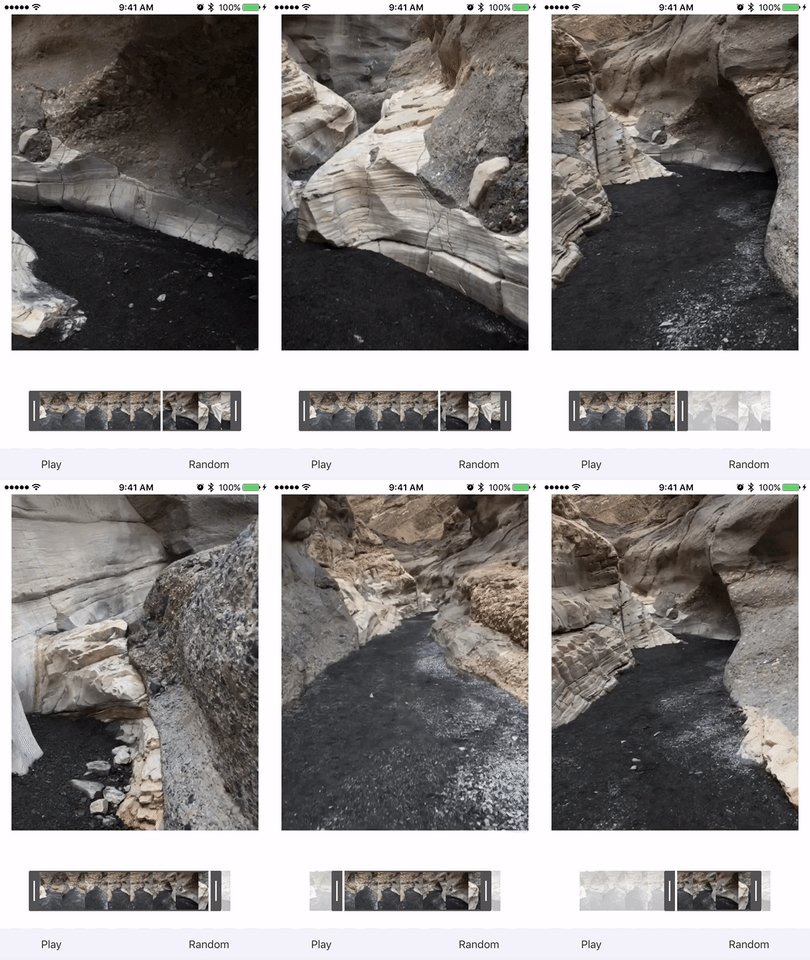
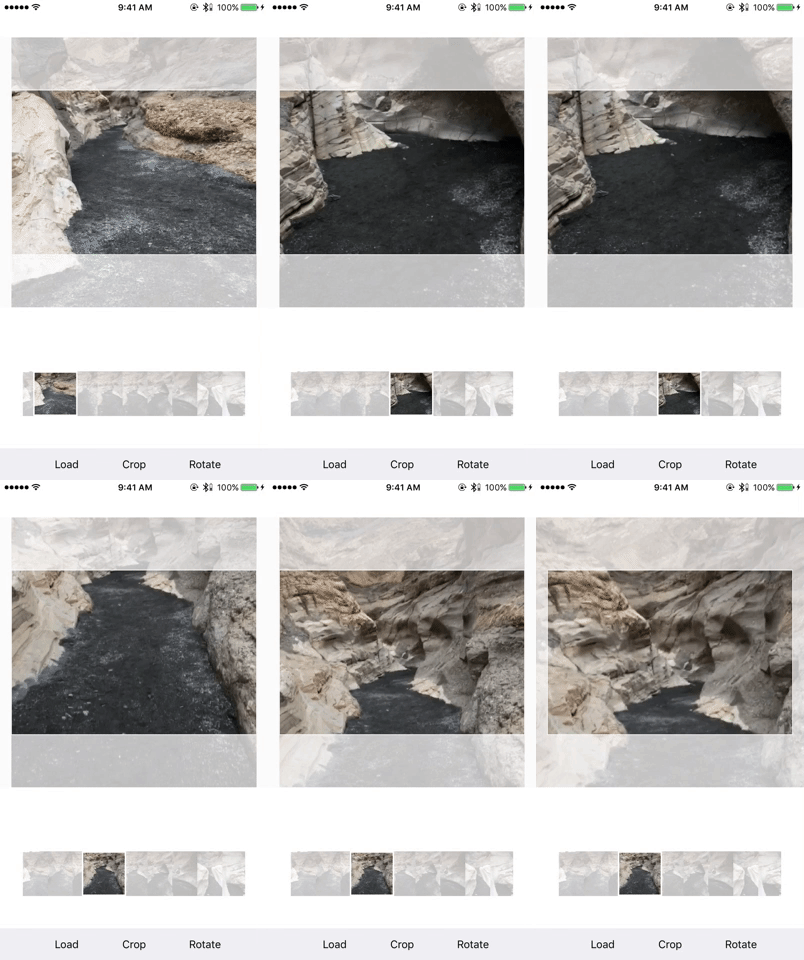
A set of tools written in swift to crop and trim videos.
|
|
|
|
|
|
## Example
|
|
|
|
To run the example project, clone the repo, and run `pod install` from the Example directory first.
|
|
|
|
### Trimming
|
|
|
|
|
|
|
|
### Cropping
|
|
|
|
|
|
|
|
## Requirements
|
|
|
|
PryntTrimmerView requires iOS9: It uses Layout Anchors to define the constraints.
|
|
|
|
## Installation
|
|
|
|
#### CocoaPods
|
|
|
|
PryntTrimmerView is available through [CocoaPods](http://cocoapods.org). To install
|
|
it, simply add the following line to your Podfile:
|
|
|
|
```ruby
|
|
pod "PryntTrimmerView"
|
|
```
|
|
|
|
Then, run `pod install` to download the source and add it to your workspace.
|
|
|
|
#### Carthage
|
|
|
|
PryntTrimmmerView is available through Carthage. To install
|
|
it, simply add the following line to your Cartfile:
|
|
|
|
```
|
|
github "HHK1/PryntTrimmerView"
|
|
```
|
|
|
|
Run `carthage update` to build the framework and drag the built PryntTrimmerView.framework into your Xcode project.
|
|
|
|
#### Swift Version
|
|
|
|
- Swift 3 compatibility: use version 1.0.1 or below.
|
|
- Swift 4 compatibility: use version 2.x.x.
|
|
- Swift 4.2 compatibility: use version 3.x.x
|
|
|
|
## Usage
|
|
|
|
:warning: _This library does not contain an API to crop or trim your video asset. You can find a possible implementation for this in the example pod, but the library only provides the UI._
|
|
|
|
### Trimming
|
|
|
|
Create a `TrimmerView` instance (in interface builder or through code), and add it to your view hierarchy.
|
|
|
|
```
|
|
trimmerView.asset = asset
|
|
trimmerView.delegate = self
|
|
```
|
|
|
|
Access the `startTime` and `endTime` property to know where to trim your asset. You can use the `TrimmerViewDelegate` to link the trimmer with an `AVPlayer` and provide the end user with a preview. See the `VideoTrimmerViewController` inside the project to see an example.
|
|
|
|
You can also customize the trimmer view by changing its colors:
|
|
```
|
|
trimmerView.handleColor = UIColor.white
|
|
trimmerView.mainColor = UIColor.orange
|
|
trimmerView.positionBarColor = UIColor.white
|
|
```
|
|
|
|
### Cropping
|
|
|
|
Create an instance of the `VideoCropView` and add it to your view hierarchy, then load your video into the crop view: `videoCropView.asset = asset`.
|
|
|
|
You can set the aspect ratio you want using the `setAspectRatio` method. Once you are satisfied with the portion of the asset you want to crop, call `getImageCropFrame` to retrieve the select frame. See the `VideoCropperViewController` in the example app for an actual example of how to crop the video for export.
|
|
|
|
## License
|
|
|
|
PryntTrimmerView is available under the MIT license. See the LICENSE file for more info.
|