 Lucas Neves Pereira
8.1 KiB
Self-Hosting Workout-Cool
Deploy Workout-Cool on your own server using Docker. This guide provides two deployment options with step-by-step instructions.
📑 Table of Contents
- Prerequisites
- Quick Start
- Management Commands
- Mapping Your Domain & Enabling HTTPS
- Troubleshooting
- Resources & Support
📋 Prerequisites
Before you begin, ensure your server meets these requirements:
- Operating System: Linux server or VPS (Ubuntu 20.04+ recommended)
- Docker: Install Docker
- Docker Compose: Install Docker Compose
- Git: Install Git
- Basic Knowledge: Familiarity with command line operations
🚀 Quick Start
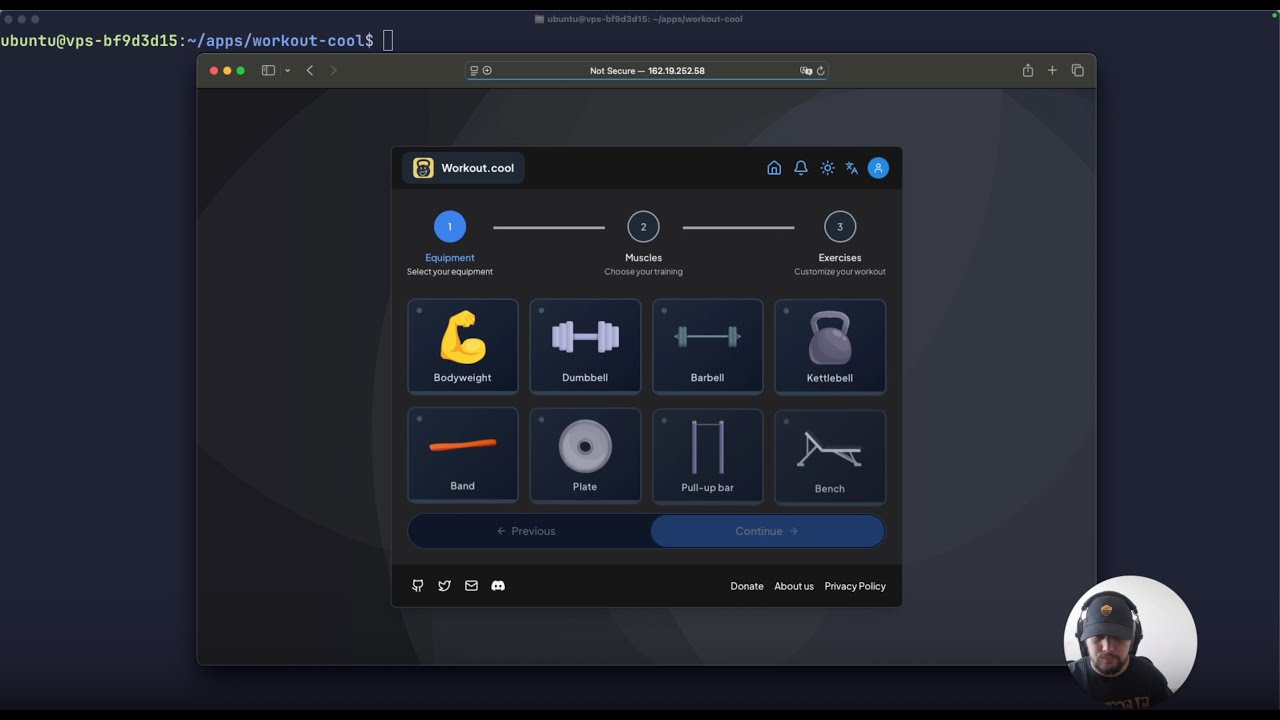
Prefer watching? Watch our 3-minute video guide on self-hosting Workout.Cool:
Common Setup Steps
These steps are required for both deployment options:
1. Connect to Your Server
ssh your-user@your-server-ip
2. Clone the Repository
mkdir -p ~/apps
cd ~/apps
git clone https://github.com/Snouzy/workout-cool.git
cd workout-cool
3. Configure Environment Variables
cp .env.example .env
nano .env
Essential Environment Variables:
# Application Configuration (Required for both options)
BETTER_AUTH_URL=http://your-server-ip:3000
BETTER_AUTH_SECRET=your-secret-key-here

# Optional: Seed sample data on first run
SEED_SAMPLE_DATA=true
4. Customize Sample Data (Optional)
nano data/sample-exercises.csv
📚 See Exercise Database Import section in the README.
Option 1: Docker Compose (All-in-One)
This option automatically sets up both the application and PostgreSQL database.
Additional Environment Variables:
# Database Configuration (Docker Compose)
POSTGRES_USER=my-user
POSTGRES_PASSWORD=my-password
POSTGRES_DB=workout-cool
DB_HOST=postgres
DB_PORT=5432

DATABASE_URL=postgresql://username:password@postgres:5432/workout-cool
Deploy:
docker compose up -d
Access:
Visit http://your-server-ip:3000
Option 2: Docker Only (External Database)
Use this option if you have an existing PostgreSQL database.
Additional Environment Variables:
# Database Configuration (External Database)
DATABASE_URL=postgresql://username:password@your-db-host:5432/workout-cool
Deploy:
docker build -t workout-cool .
docker run -d --name workout-cool -p 3000:3000 --env-file .env workout-cool
Access:
Visit http://your-server-ip:3000
🌐 Mapping Your Domain & Enabling HTTPS
Make your app accessible via your own domain and secure it with HTTPS. Here's how:
1. Point Your Domain
- Log in to your domain registrar.
- Create an A record for
yourdomain.compointing to your server's IP. - (Optional) Create a CNAME record for
wwwpointing toyourdomain.com.
2. Set Up HTTPS with a Reverse Proxy
Option A: Caddy (Recommended)
Caddy provides automatic HTTPS and a simpler config.
- Install Caddy:
sudo apt install -y debian-keyring debian-archive-keyring apt-transport-https curl -1sLf 'https://dl.cloudsmith.io/public/caddy/stable/gpg.key' | sudo gpg --dearmor -o /usr/share/keyrings/caddy-stable-archive-keyring.gpg echo "deb [signed-by=/usr/share/keyrings/caddy-stable-archive-keyring.gpg] https://dl.cloudsmith.io/public/caddy/stable/deb/debian all main" | sudo tee /etc/apt/sources.list.d/caddy-stable.list sudo apt update sudo apt install caddy - Configure Caddy:
Add:
sudo nano /etc/caddy/Caddyfileyourdomain.com { reverse_proxy localhost:3000 } - Reload Caddy:
sudo systemctl reload caddy
✅ Caddy will:
- Automatically request and install an SSL certificate via Let’s Encrypt
- Renew it automatically
- Proxy requests to your app running on port
3000
Option B: Nginx + Let's Encrypt
Use this if you're more familiar with Nginx.
-
Install Nginx & Certbot:
sudo apt update && sudo apt install nginx certbot python3-certbot-nginx -
Create Nginx config:
sudo nano /etc/nginx/sites-available/workout-coolAdd:
server { listen 80; server_name yourdomain.com www.yourdomain.com; location / { proxy_pass http://localhost:3000; proxy_set_header Host $host; proxy_set_header X-Real-IP $remote_addr; proxy_set_header X-Forwarded-For $proxy_add_x_forwarded_for; proxy_set_header X-Forwarded-Proto $scheme; } } -
Enable and reload:
sudo ln -s /etc/nginx/sites-available/workout-cool /etc/nginx/sites-enabled/ sudo nginx -t && sudo systemctl reload nginx -
Get an HTTPS certificate:
sudo certbot --nginx -d yourdomain.com -d www.yourdomain.com
3. Update Environment
Update your .env file with the new domain
BETTER_AUTH_URL=https://yourdomain.com
NEXT_PUBLIC_APP_URL=https://yourdomain.com
🛠️ Management Commands
Docker Compose Commands
# Start/Stop services
docker compose up -d
docker compose down

# View logs
docker compose logs -f

# Update and restart
git pull
docker compose down
docker compose up -d --build
Docker Commands
# Start/Stop container
docker start workout-cool
docker stop workout-cool

# View logs
docker logs -f workout-cool

# Update application
git pull
docker build -t workout-cool .
docker stop workout-cool
docker rm workout-cool
docker run -d --name workout-cool -p 3000:3000 --env-file .env workout-cool
🐛 Troubleshooting
Common Issues
Application Won't Start
# Check logs
docker compose logs workout_cool  # or docker logs workout-cool

# Verify environment variables using docker compose
docker compose exec workout_cool env | grep DATABASE_URL  # or docker exec workout-cool env | grep DATABASE_URL
Database Connection Issues
# Test database connectivity (Docker Compose)
docker compose exec postgres psql -U postgres -d workout_cool -c "SELECT 1;"

# Check database status
docker compose ps postgres
Port Already in Use
# Check what's using port 3000
sudo lsof -i :3000

# Change port in docker-compose.yml
# ports:
#   - "3001:3000"  # Use port 3001 instead
Getting Help
If you encounter issues:
- Check the logs: Use
docker compose logsordocker logs - Verify configuration: Ensure all environment variables are set correctly
- Database connectivity: Test database connection manually
- Search existing issues or create a new one on GitHub
- Join our Discord community for support
📚 Resources & Support
Documentation
- Docker Documentation
- Docker Compose Documentation
- PostgreSQL Documentation
- Next.js Deployment Guide
- Caddy Documentation
Community & Support
- GitHub: Repository | Issues
- Discord: Join our community
Last updated: July 2025